
Form Submission Trigger
Continue a workflow after a form has been successfully saved.
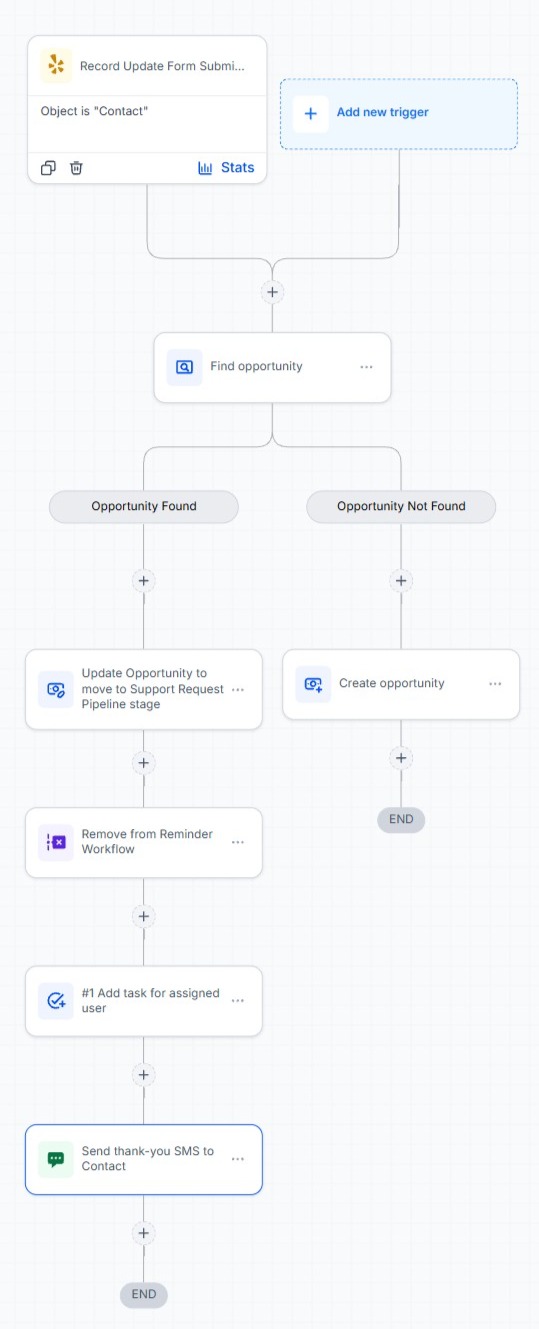
Workflows can continue after a form has been successfully saved using the app's Form Submitted trigger. The trigger fires after every successful server-side save – including a successful submission where no CRM field values changed.
If multiple submissions are enabled, each successful save fires the trigger again. If multiple submissions are disabled, subsequent submissions are blocked after the first successful submission.
Trigger payload
| Property | Description |
|---|---|
object_key | The object the form was configured for |
record_id | The CRM record that was updated or created |
contactId | On a Contact form, the same value as record_id. On any other object, the Contact from the workflow context that generated the form, if one was present – otherwise omitted |
form_id | Identifier for the generated form |
form_reference | The business-purpose reference set on the action |
submitted_at | When the submission was saved |
created | true if this submission created the record, otherwise false |
changed_fields | Array of the fields actually written back on this submission |
opportunity_signature_url | Opportunity submissions only – the URL of the first Signature-type field that's been signed, or null if the object isn't Opportunity, has no Signature field, or none has been signed yet. Only the first Signature field is ever included if the object has more than one. |
Useful workflow examples
- Notify a team member that a record was updated
- Send a confirmation message
- Branch based on whether a record was created or updated
- Perform additional CRM actions
- Start another workflow
- Generate another update form – see Redirects and Form Chaining