
Update Records with Forms removes the manual work between HighLevel and the people who need to touch a record
Not a form for one Object type – a way to stop building and babysitting pre-fill links, keep data on the right record, and control exactly what each person can see, edit and trigger next. Six ways teams put it to work:
Pre-fill forms without maintaining giant URLs
You already have the information in HighLevel and want someone to review or update it. The conventional approach builds a long pre-filled URL, or a field-by-field mapping, covering every single field. That's fragile – the moment a field is added or changed in HighLevel, somebody has to remember to update the external mapping too, or the form quietly falls out of date.
Update Records with Forms reads the current record and current form fields directly from HighLevel. Every current value is pre-filled automatically. The number of fields doesn't create more configuration work, and new fields can appear on the same existing link – no rebuild required.
Traditional approach
Update Records with Forms
- No field-by-field pre-fill mapping
- No giant pre-fill URLs
- No duplicate form schema to maintain
- Existing data is already filled in
- New fields don't require rebuilding the form
- Field order follows HighLevel automatically
- HighLevel stays the source of truth
Stop storing Opportunity data on the Contact
A workflow needs someone to update information tied to a particular Opportunity. Because updating that exact Opportunity externally is hard, teams often fall back on duplicate Contact custom fields instead: copy the Opportunity data onto the Contact, send a Contact form, get the data back, work out which Opportunity it belongs to, copy it back, then clean up the temporary fields. That falls apart the moment one Contact has more than one Opportunity.
With Update Records with Forms, the workflow identifies the correct Opportunity first, then generates a form for that exact Opportunity. The recipient reviews and updates it directly – the data never leaves the record that owns it.
- No duplicate Contact fields
- No temporary data storage
- No post-submission Opportunity lookup
- No ambiguity when one Contact has multiple Opportunities
- Data stays on the Object that actually owns it
- The workflow can set the starting Pipeline & Stage before the form is even sent
A submitted Opportunity form can move the deal to a new Pipeline Stage the moment it's saved – no separate trigger needed to advance it. Nothing changes on the record until the recipient actually submits; opening the link alone never moves anything.
Guide people through several related records
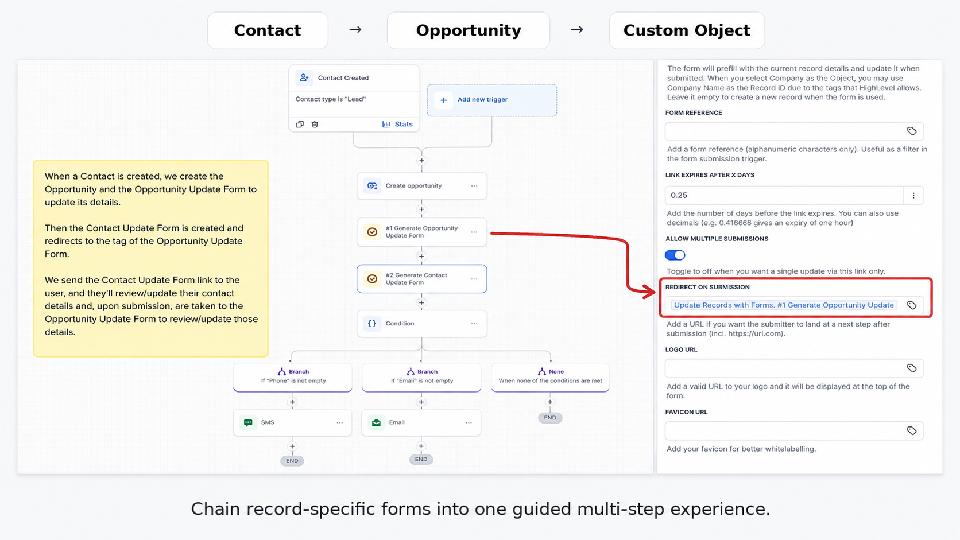
One form having one clear record context is a strength, not a limitation – Contact, Opportunity and Custom Object data stay properly separated instead of getting flattened into one giant record just to collect it in a single customer interaction. When someone needs to review several related records, chain forms together with Redirect on Submission to create a guided, multi-step experience.
Each screen is its own secure, pre-filled form – to the recipient it feels like one guided journey. Each step can have its own Object, its own Record ID, its own fields, its own instructions and its own editing permissions.
Chained forms are independent and don't automatically share record context – each step's Record ID is supplied by the workflow, the same way a single form's is.
Share the right CRM information without sharing the CRM
Sometimes a customer, contractor, supplier, partner or staff member needs access to information stored in HighLevel. They don't need, and shouldn't receive, a normal CRM user account. Generate a secure form for the exact record, use Read-only Fields for what they need to see, and reserve editable fields for what they're allowed to change.
A contractor can see
- Project address
- Installation details
- Equipment information
but only edit: completion status, site notes, photographs.
A customer can see
- Current project information
- Scheduled dates
- Existing contact details
but only edit: details you specifically allow them to update.
Give someone focused access to the data they need, without giving them access to HighLevel itself.
For a Contact or Opportunity, turn on Send Verification Code to require a one-time code sent to the phone or email already on that record before the form loads – proof the person opening the link is actually the person the data belongs to. See Verification.
Each sub-account can serve its links from its own branded domain, so the recipient opens a link from a business they already recognise rather than an unfamiliar third-party address.
Turn one CRM record into different forms for different moments
A record can hold dozens of fields, but a person rarely needs to see all of them at once. Hide the fields that do not belong, or select the only ones that do, then use Read-only and Required Fields to set a specific editing boundary for each generated link.
Same Opportunity, three different moments
Site inspection form
Show: site access, roof type, measurements, photos
Hide: financial fields, internal sales notes, handover fields
Installation form
Show: installation date, installer, equipment, completion photos
Hide: sales qualification fields, irrelevant site-inspection fields
Handover form
Show: documentation, handover date, final confirmation
Hide: everything not needed to close out the job
One CRM record. Different controlled views. No login required – the form link itself controls which portion of the record is exposed.
Changed your mind after a link went out? Field visibility can be edited on links that already exist. See Manage links after sending.
A submission can start the next workflow
Updating the record doesn't have to be the end of the process. Update Records with Forms includes the Record Update Form Submitted Marketplace Workflow Trigger – when a generated form is successfully submitted, it can start another HighLevel workflow.
Form submitted → stop reminder sequence
Form submitted → remove Contact from follow-up workflow
Form submitted → send thank-you SMS or email
Form submitted → notify assigned user
Form submitted → create an internal task
Form submitted → continue fulfilment process
Form submitted → route based on Form Reference
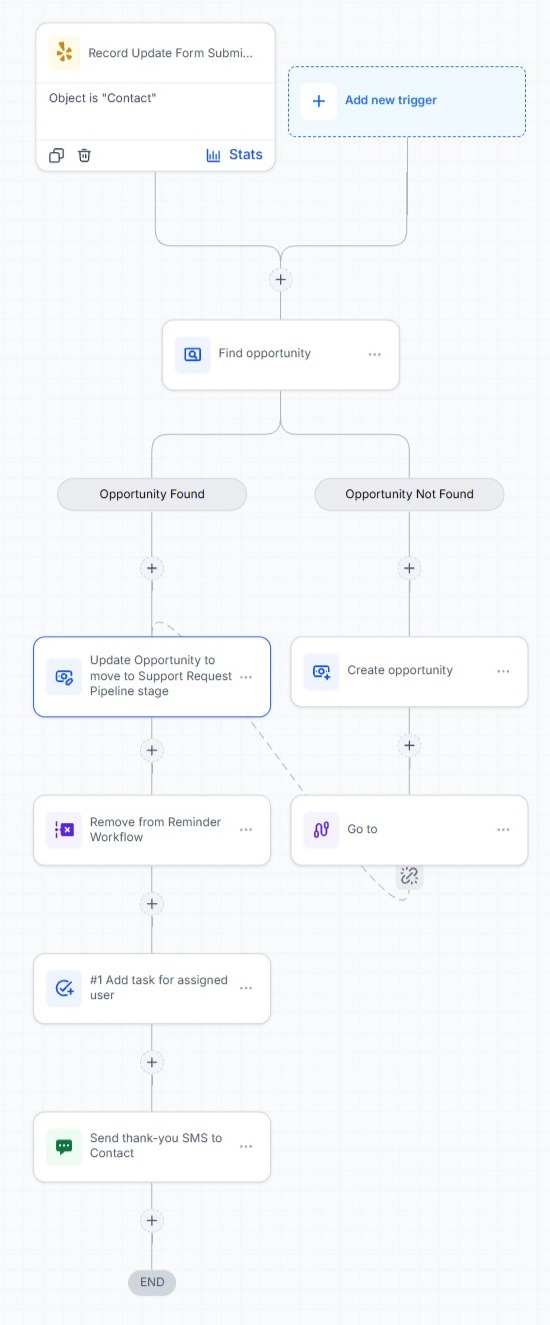
Form Reference carries the business purpose of the submitted form – site_inspection, installation_details, customer_approval, handover – so the trigger can route to the right downstream process.
A link you sent last week is not set in stone
Plans change after a form goes out. A job is cancelled, a link reaches the wrong person, a customer needs one more day, or you realise a field should never have been editable. The Forms dashboard opens inside HighLevel and lets you act on links that already exist – without re-running a workflow or asking anyone to use a new URL.
End access early
Retire an active link and it stops working straight away, ahead of its expiry. Useful when a job is cancelled or a link was forwarded somewhere it shouldn't have been.
Give a second chance
Reactivate a retired or expired link for another 30 days. The recipient carries on with the URL they already have, instead of waiting for you to generate and re-send a replacement.
Fix many links at once
Filter, select, and update expiry, Hidden, Read-only and Required fields, file behaviour, redirect, Opportunity pipeline and stage, and Form Instructions across hundreds of links in one pass.
Current settings sit beside the change you have proposed, so you can see exactly what will differ before you confirm. Links are then updated one at a time, so a problem with one does not undo the rest, and every change is written to the Log.
See which solution fits your workflow
US$15/month after trial · 14-day free trial · unlimited use
Start 14-day free trial